User Guide
Welcome to the Trace2Gather User Guide. Trace2Gather is a desktop app for managing hotel rooms and guests, optimised for use via a Command Line Interface (CLI), while still having the benefits of a Graphical User Interface (GUI).
Our application aims to complement existing contact tracing efforts, while also helping you to manage your hotel guests fast.
The purpose of this user guide is to help you explore Trace2Gather’s many features and how to use them.
If you require assistance using this guide, please feel free to visit the Navigation Guide for more information.
Table Of Contents
- Navigation Guide
- Quick Start
- Features
- Frequently Asked Questions (FAQ)
- Command Summary
Navigation Guide
Before we guide you through our application’s features, please visit the Quick Start section to ensure our application can run on your device.
After you are done setting up, check out the Features section to explore the various features our application offers, and how to use them.
If you would like a quick overview of all available commands, check out the Command Summary.
If you have any questions, they may be answered in the Frequently Asked Questions (FAQ) section.
Quick Start
This section will help you get our application running on your device, step by step.
-
Ensure you have Java
11or above installed in your Computer. -
Download the latest
trace2gather.jarfrom here. -
Copy the file to the folder you want to use as the home folder for Trace2Gather.
-
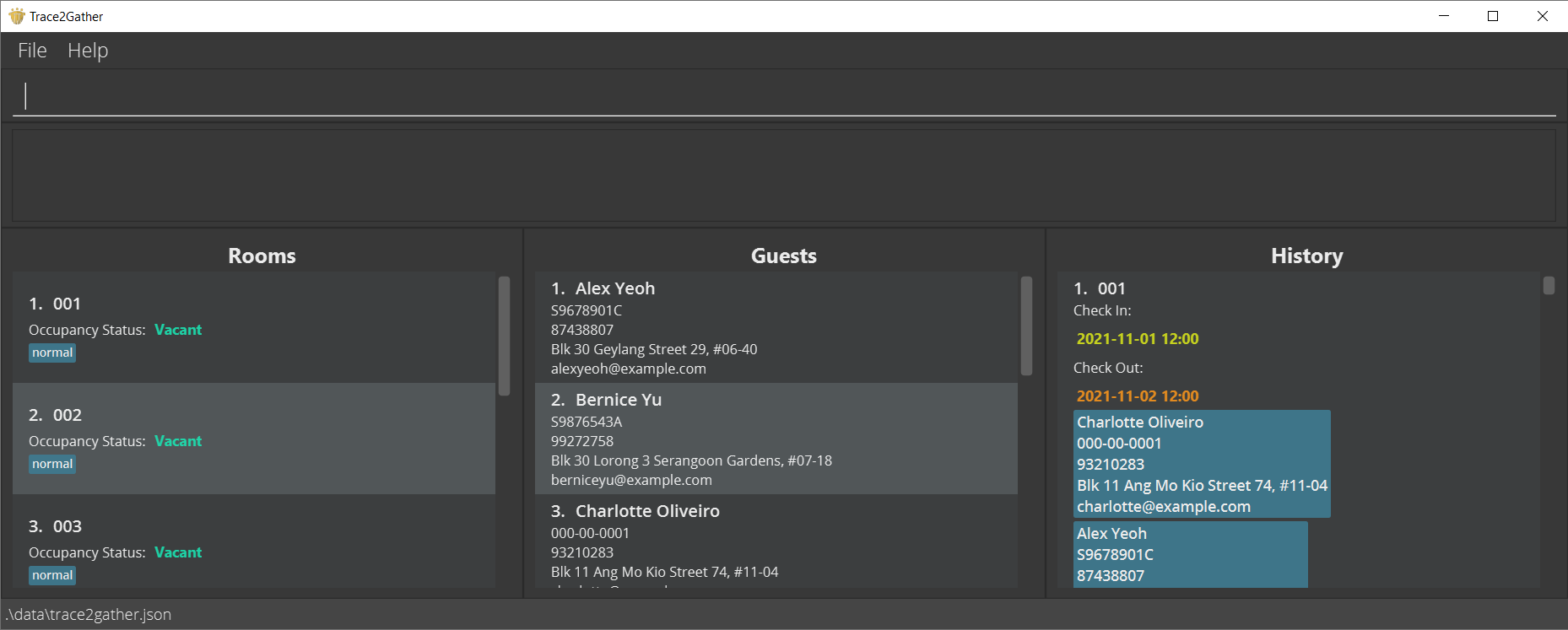
Double-click the file to start the application. The GUI below should appear in a few seconds, and will look like the screenshot below. Do note that the application contains some sample data for your convenience.
-
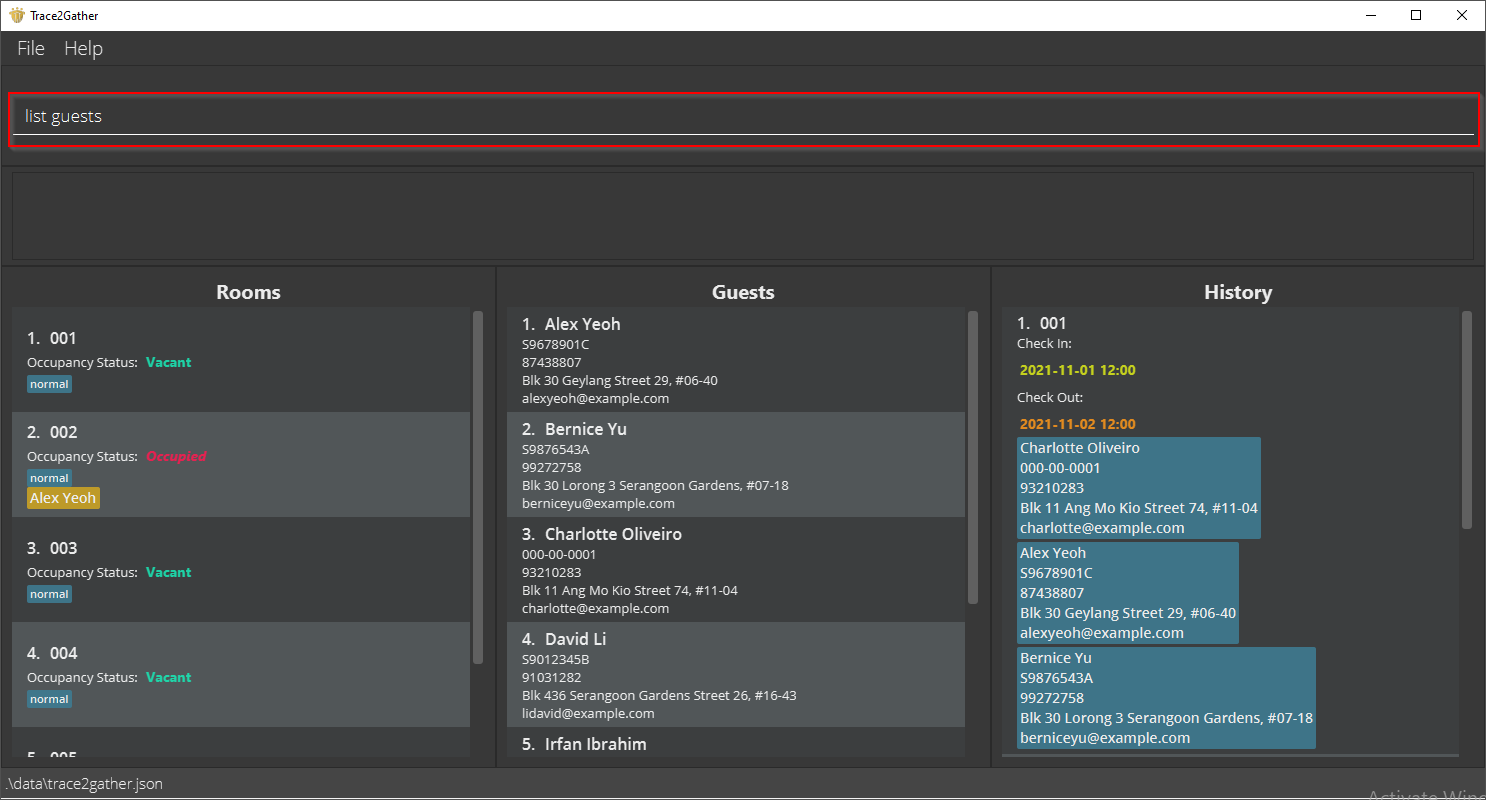
Type a command in the command box (shown in the screenshot below) and press Enter to execute it. For example, typing
list guestsand pressing Enter will show the UI below.
 Some example commands you can try are the following:
-
list guests: Lists all guests. -
addroom 5 t/typeA: Adds 5 rooms of type A to the room list. -
add n/John Doe p/98765432 e/johnd@example.com a/John street, block 123, #01-01 id/S98765432H: Adds a contact namedJohn Doeto the Trace2Gather. -
checkin 5 g/1: Checks in the 1st guest into the 5th room in the room list. -
clear: Deletes all rooms, guests and past records. -
exit: Exits the app.
-
-
Refer to the Features section below for details of each command.
Features
This section showcases all our application’s features. Each feature has its own sub-section, with formats and examples for clarity.
 Notes about the command format:
-
All commands are in lower case,
For example, commands are used asadd,record,guest,addroom, etc. -
Words in
UPPER_CASEare the parameters to be supplied by you.
For example, inadd n/NAME,NAMEis a parameter which can be used asadd n/John Doe. -
Items in square brackets are optional.
For example:n/NAME [t/TAG]can be used asn/John Doe t/Quarantineor asn/John Doe. -
Items with
… indicates that there can be additional parameters of the same type.
For example:[t/TAG]…can be used ast/Quarantine t/SeafoodAllergyor justt/Quarantine. -
Parameters can be in any order.
For example, if the command specifiesn/NAME p/PHONE_NUMBER,p/PHONE_NUMBER n/NAMEis also acceptable. -
If a parameter is expected only once in the command, yet it is specified multiple times, only the last occurrence of the parameter will be taken.
For example, if you specifyp/11111111 p/22222222, onlyp/22222222will be used. -
Extraneous parameters for commands that do not take in parameters (such as
help,exitandclear) will be ignored.
For example, if the command specifieshelp 123, it will be interpreted ashelp. -
If you have a small screen, please use the application in full screen mode by clicking on the square icon at the top right-hand corner of the window.
-
For devices with smaller screens, some information about guests, rooms, or residencies may be cut off with an ellipses.
Viewing help : help
Shows a message explaining how to access the help page.

Format: help
Guests
Adding a guest: add
Adds a guest to Trace2Gather.
Format: add n/NAME p/PHONE_NUMBER e/EMAIL a/ADDRESS id/ID [t/TAG]…
Acceptable format for keywords:
- Names: No special characters, but spaces are allowed. No longer than 50 characters.
- Phone Number: Digits only and at least 3 digits long.
- Email: Must follow the format of xxx@yyy.zzz.
- Address: Special characters such as
#are allowed. Field must not be blank. - Id: Accommodates for international guests who may have longer identification numbers and/or special characters. It must not be empty and it must be no longer than 50 characters. It is case-insensitive.
- Tags: No whitespaces within a tag.
 Tips:
Tips: 1. A guest can have any number of tags (including no tags at all).
2. Two guests who have identical IDs are considered identical.
Examples:
add n/John Doe p/98765432 e/johnd@example.com a/John street, block 123, #01-01 id/S98765432Gadd n/Betsy Crowe t/Quarantine e/betsycrowe@example.com a/Crowe Lane id/S98765431G p/1234567 t/SeafoodAllergy
Listing all guests : list guests
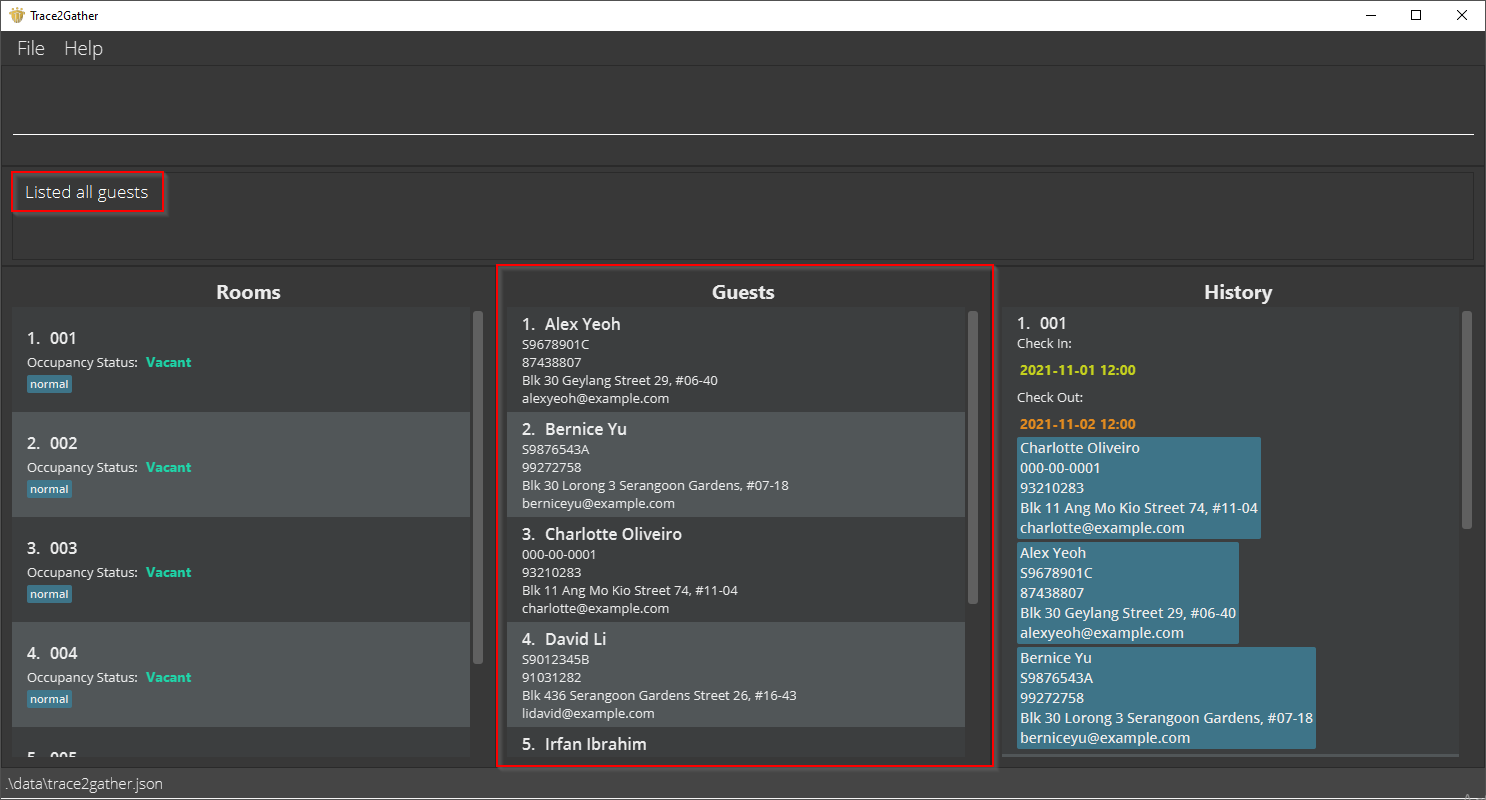
Shows a list of all guests in Trace2Gather. If you were searching for a guest earlier using the guest command, using list guests would yield you the full list of guests, and it would be displayed in the Guests panel. This is illustrated in the screenshot below after the execution of the list guests command.
Format: list guests
Editing a guest : edit
Edits an existing guest in Trace2Gather.
Format: edit INDEX [n/NAME] [p/PHONE] [e/EMAIL] [a/ADDRESS] [id/ID] [t/TAG]…
- Edits the guest at the specified
INDEX. The index refers to the index number shown in the displayed guest list. The index must be a positive integer 1, 2, 3, … - At least one of the optional fields must be provided.
- Existing values will be updated to the input values.
- When editing tags, the existing tags of the guest will be removed, That is, the addition of tags is not cumulative.
- You can remove all the guest’s tags by typing
t/without specifying any tags after it.
Acceptable format for keywords:
- Names: No special characters, but spaces are allowed. No longer than 50 characters.
- Phone Number: Digits only, and at least 3 digits long.
- Email: Must follow the format of xxx@yyy.zzz.
- Address: Special characters like
#are allowed for address purposes, must not be blank. - Id: Accommodates for international guests who may have longer identification numbers and/or special characters. Must not be an empty string, and there is a 50-character limit on the length.
- Tags: No whitespaces within a tag.
Examples:
-
edit 1 p/91234567 e/johndoe@example.comEdits the phone number and email address of the 1st guest to be91234567andjohndoe@example.comrespectively. -
edit 2 n/Betsy Crower t/Edits the name of the 2nd guest to beBetsy Crowerand clears all existing tags.
Locating guests by name: guest
Find guests whose names contain any of the given keywords.
Format: guest KEYWORD [MORE_KEYWORDS]
- The search is case-insensitive. For example,
hanswill return youHans. - The order of the keywords does not matter. For example,
Hans Bowill matchBo Hans. - Only the name is searched.
- Guests matching at least one keyword will be returned (i.e.
ORsearch). For example,Hans Bowill returnHans Gruber,Bo Yang.
 Caution:
Only full words will be matched, For example, searching
Caution:
Only full words will be matched, For example, searching Han will not return you Hans.
Examples:
-
guest JohnreturnsjohnandJohn Doe -
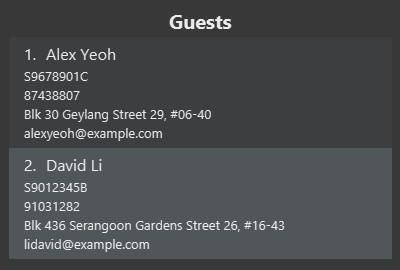
guest alex davidreturnsAlex Yeoh,David Li
The image below is an example of how part of the application interface may look when the command guest alex david is executed.
Rooms
Adding rooms : addroom
Adds the specified number of rooms with the specified tag(s).
Format: addroom NUMBER_OF_ROOMS t/tag [t/tag]...
- Adds the specified
NUMBER_OF_ROOMSof typetagto the list of rooms. - The specified number of rooms must be a positive integer. That is, 1, 2, 3, …
- The full list of rooms will be shown after rooms have been added.
- Note: There should be no whitespace within a tag.
Tip:
A room can have one or more tags.
Caution:
You can only add up to 999 rooms.
Examples:
addroom 5 t/typeAaddroom 10 t/typeB t/reserved
Checking into a room : checkin
Checks in guest(s) into a room.
Format: checkin ROOM_INDEX g/GUEST_INDEX [g/GUEST_INDEX]...
Tips: 1. A room can have more than one guest.
2. If you cannot check guests into a room, check that the room index and guest index(es) are the ones you can see on the panels. Otherwise, use the command
list rooms and list guests to show all rooms and guests. Caution: 1. You cannot check in the same guest into multiple rooms.
2. Advanced users can edit the JSON file directly such that a guest can be checked in and checked out at the same time. This is not the intended use of the application.
The indices refer to the index numbers shown in the numbered guest/room list.
Examples:
checkin 5 g/1checkin 1 g/2
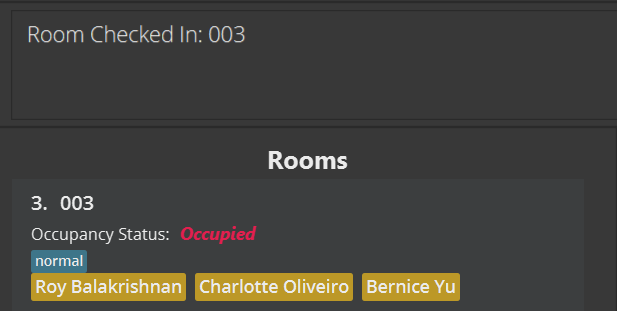
The image below is an example of how part of the application interface looks when the command checkin 3 g/2 g/3 g/6 is executed.
Checking out of a room : checkout
Checks out the guest(s) from a room.
Format: checkout ROOM_INDEX
The room index refers to the index number shown in the displayed room list.
Example:
checkout 5checkout 7
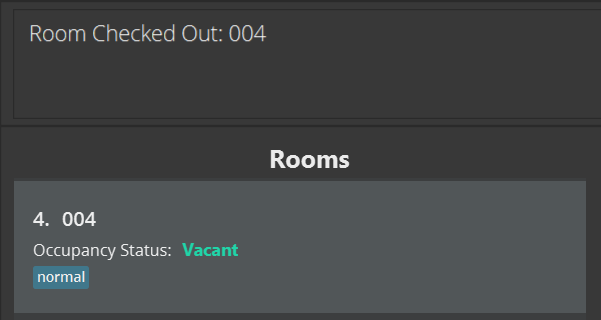
The image below is an example of how part of the application interface looks when the command checkout 4 is executed.
Locating a specific room : room
Shows a list of rooms that match the room number(s) provided. Room numbers should have 3 digits.
Format: room ROOM_NUMBER [MORE_ROOM_NUMBERS]
Example:
room 005 010room 003
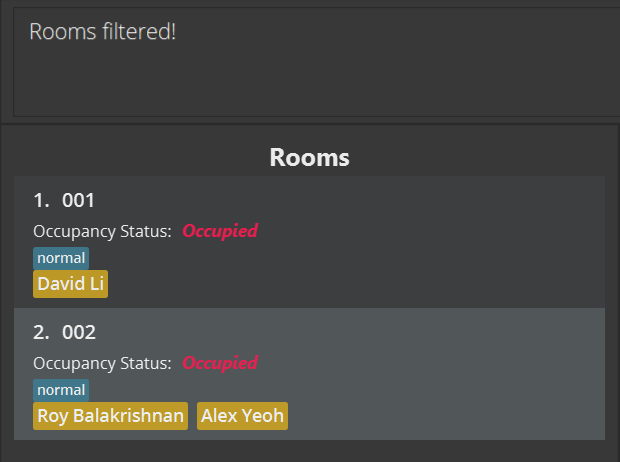
The image below is an example of how part of the application interface looks when the command room 001 002 is executed.
Listing all rooms : list rooms
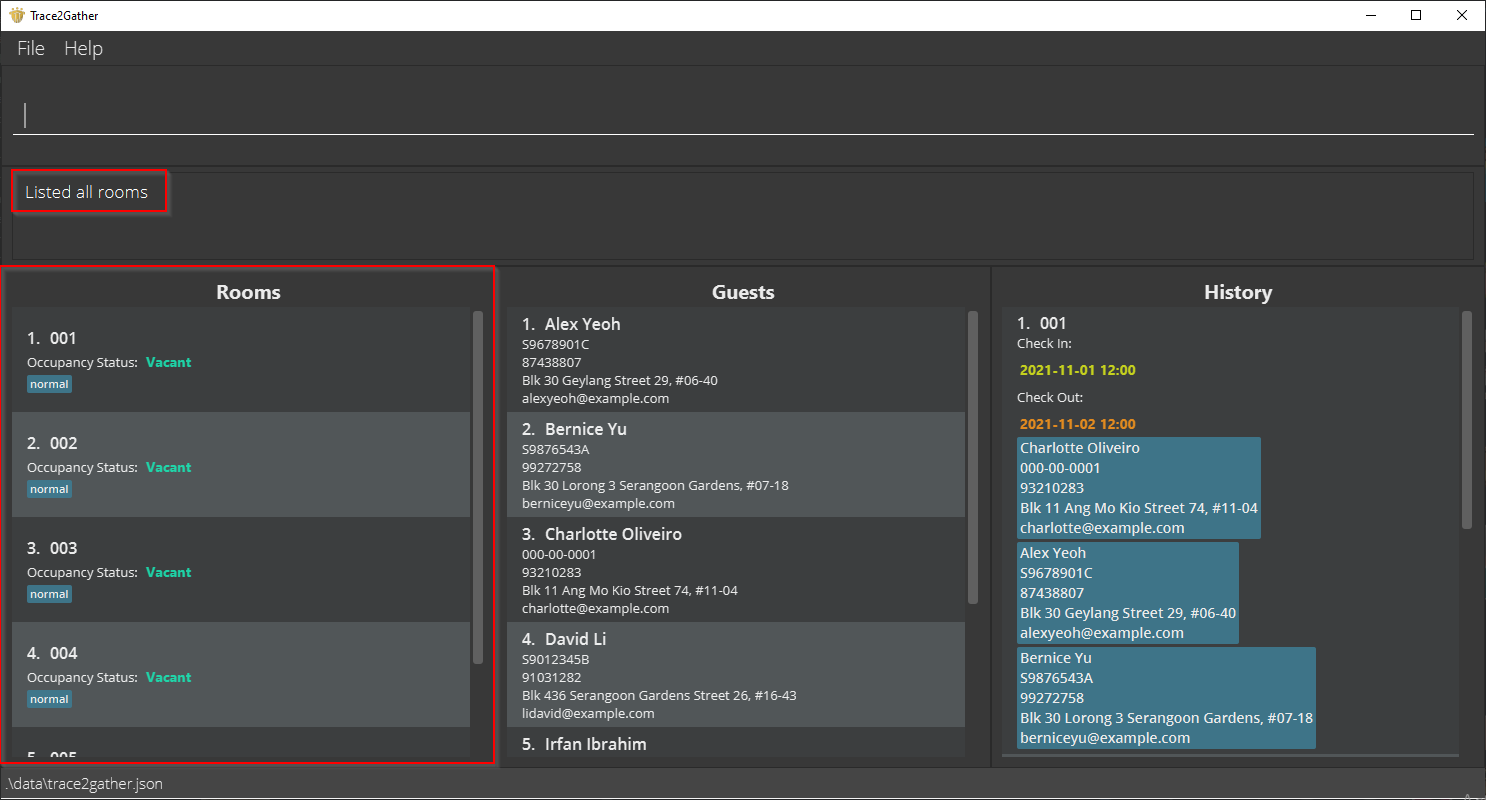
Shows the list of all rooms in Trace2Gather. If you were searching for a room using the room command earlier, using list rooms would yield you the full list of rooms, and it would be displayed in the Rooms panel. This is illustrated in the screenshot below after the execution of the list rooms command.
Format: list rooms
Listing all occupied rooms : list rooms occupied
Shows the list of all rooms that are occupied in Trace2Gather. The image below illustrates a possible example of what you could see after executing the command. Only Room 002 was occupied, so list rooms occupied returns only Room 002, leaving out the rest of the vacant rooms.
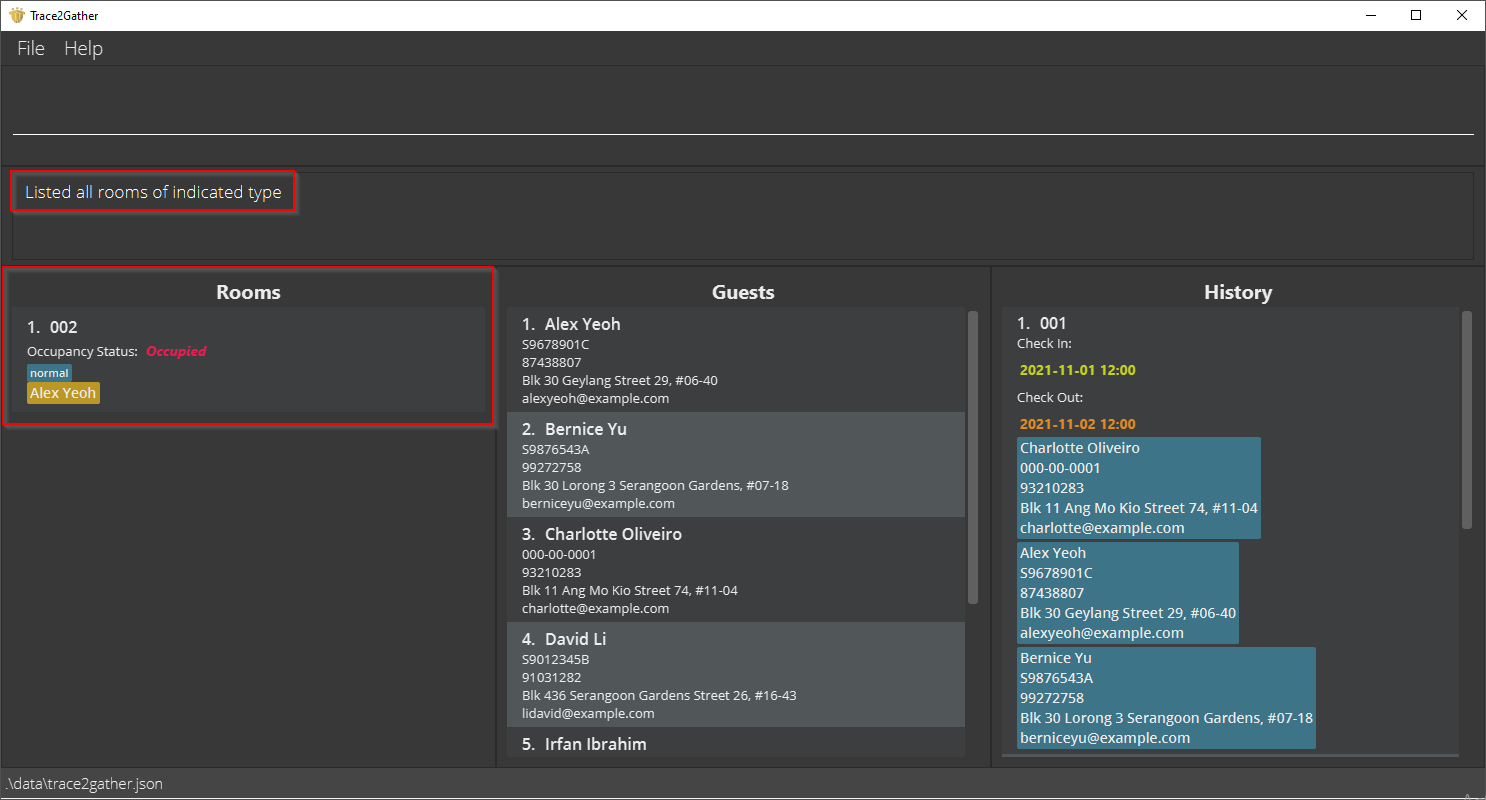
Format: list rooms occupied
Listing all vacant rooms : list rooms vacant
Shows the list of all rooms that are vacant in Trace2Gather. The image below illustrates a possible example of what you could see after executing the command. Room 002 was occupied, so list rooms vacant does not display Room 002, but displays all other vacant rooms.
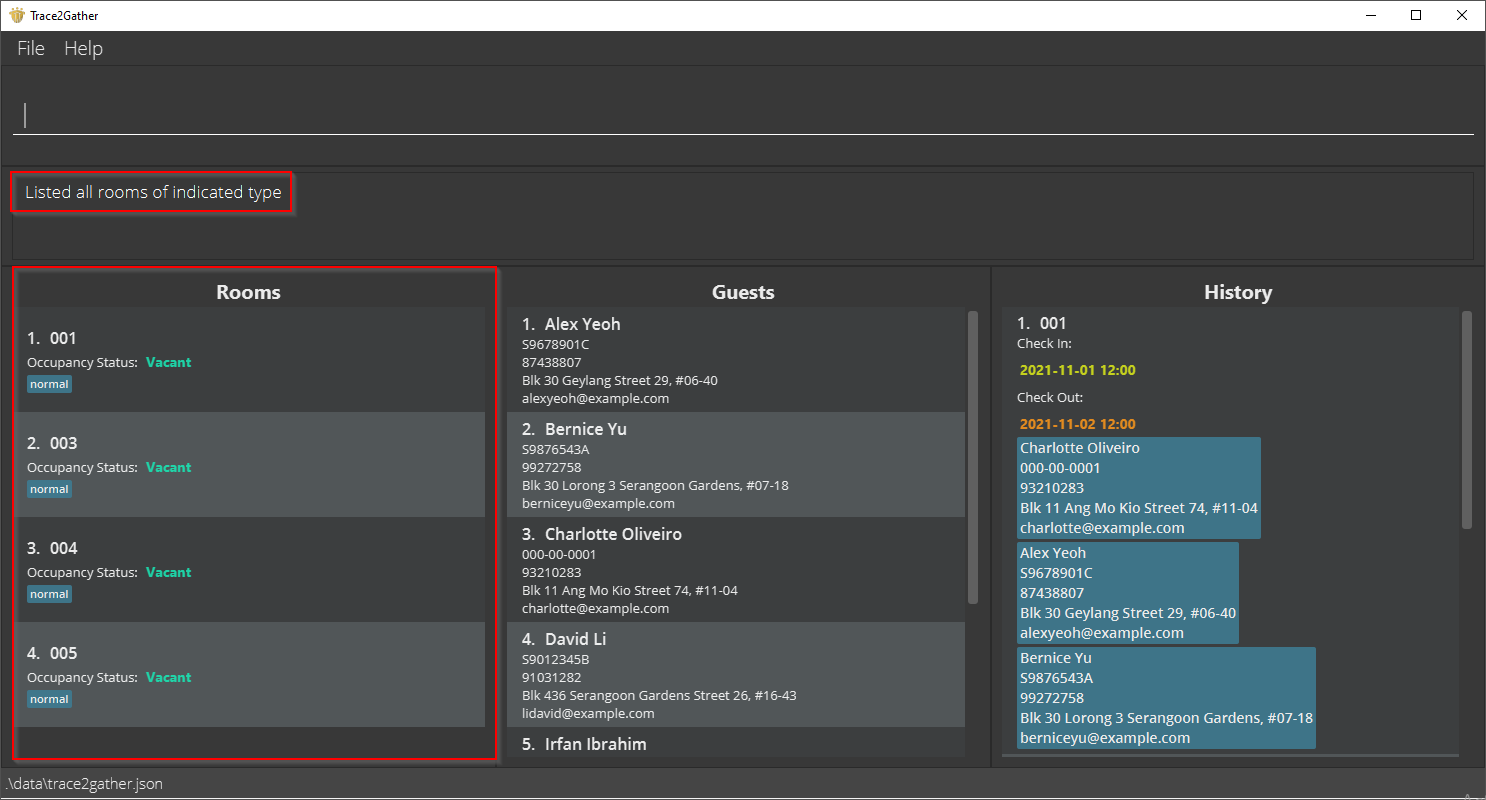
Format: list rooms vacant
Records
Listing all records : list records
Shows the list of past residencies in Trace2Gather. If you were searching for a record earlier using the record command, using list records would yield you the full list of records, and it would be displayed in the History panel. This is illustrated in the screenshot below after the execution of the list records command.
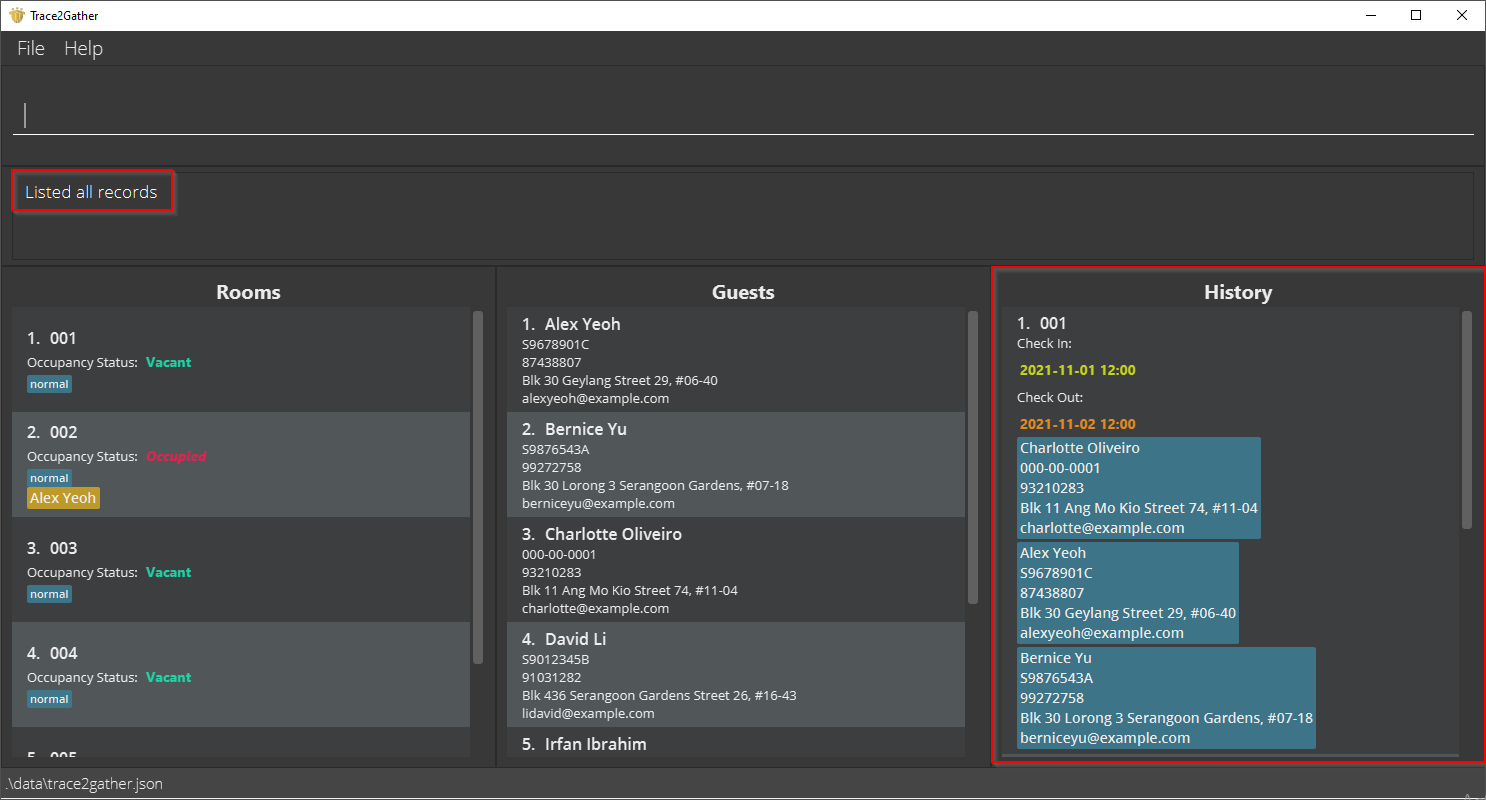
Format: list records
Locating specific records: record
Shows the records that match all the keywords provided. Case-insensitive, and at least 1 keyword must be entered.
Format: record KEYWORD [MORE KEYWORDS]...
The following fields are what you can use to search for a record:
- Guest Name
- Guest Id
- Guest Phone Number
- Guest Address
- Guest Email
- Guest Tags
- Room Number
- Checkin Time
- Checkout Time
Acceptable formats for keywords:
- Dates of stay: YYYY-MM-DD.
- Names: No special characters, but spaces are allowed.
- Room Numbers: must be in its 3-digit format. For example, 001, 233, 999.
Example:
record Alex shows the residencies Alex had in the past.
record 001 shows the residencies Room 001 had in the past.
record Alex 001 shows the residencies that involve Alex staying in Room 001 in the past.
record Alex Bernice shows the residencies Alex and Bernice had together in the past.
record 2021-10-31 shows the past residences that include the specified date (both checkin and checkout included).
Database / Storage
Clearing all entries : clear
Clears all entries from Trace2Gather.
Format: clear
Caution:
Using this command will clear your JSON file, which means that all your room and guest objects will be erased.
Exiting the program : exit
Exits the program.
Format: exit
Saving the data
Trace2Gather data is saved in the hard disk automatically after any command that changes the data is executed. There is no need to save manually.
Editing the data file
Trace2Gather data is saved as a JSON file [JAR file location]/data/trace2gather.json. Advanced users are welcome to update the data directly by editing the JSON file.
Caution:
If your changes to the JSON file causes the data within the file to be invalid, Trace2Gather will discard all the data in the JSON file and start with an empty data file at the next run.
Frequently Asked Questions (FAQ)
We understand that you might have questions regarding our application. Below are some common questions we have been asked.
Q: How do I transfer my data to another Computer?
A: Install the app in the other computer and overwrite the empty data file it creates with the file that contains the data of your previous Trace2Gather home folder.
Q: Why does my edit / checkin / checkout command not work?
A: The indices required by these commands are the ones from the numbered list seen in the GUI. You can try using one or more of the list commands to show all available data and make sure you have the correct indices.
Q: Why does our application’s logo look very similar to TraceTogether’s logo?
A: Our application’s purpose was driven with the intention to complement TraceTogether and thus we decided to be faithful to the logo used. The difference in colour scheme is a nod to the contributors who made AB3, the original source code we based our application off from, as AB3’s logo was brown in colour.
Q: How do I know if my application is not responding?
A: Please try to use your computer’s task manager, such as Window’s Task Manager, to check that the application is running.
Q: I would like to use your application’s codebase to develop my product. Is that alright with you?
A: Yes, please feel free to use our code base! Just remember that our application was built off AB3’s code base found here. Thus, please do remember to acknowledge the developers behind the code base.
Command Summary
| Action | Format, Examples |
|---|---|
| Add |
add n/NAME p/PHONE_NUMBER e/EMAIL a/ADDRESS id/ID [t/TAG]… Example: add n/James Ho p/22224444 e/jamesho@example.com a/123, Clementi Rd, 1234665 id/S9943233F t/friend t/colleague
|
| Addroom |
addroom NUMBER_OF_ROOMS t/tag [t/tag]...Example: addroom 5 t/typeA
|
| Clear | clear |
| Checkin |
checkin ROOM_INDEX g/GUEST_INDEX [g/GUEST_INDEX]...Example: checkin 5 g/1
|
| Checkout |
checkout ROOM_INDEXExample: checkout 4
|
| Edit |
edit INDEX [n/NAME] [p/PHONE_NUMBER] [e/EMAIL] [a/ADDRESS] [id/ID] [t/TAG]…Example: edit 2 n/James Lee e/jameslee@example.com
|
| Exit | exit |
| Guest |
guest KEYWORD [MORE_KEYWORDS]Example: guest James Jake
|
| List |
list guests, list records, list rooms, list rooms occupied, list rooms vacant
|
| Help | help |
| Record |
record KEYWORD_ONE...Example: record Alex, record 001
|
| Room |
room ROOM_NUMBER [MORE_ROOM_NUMBERS]Example: room 001 002
|